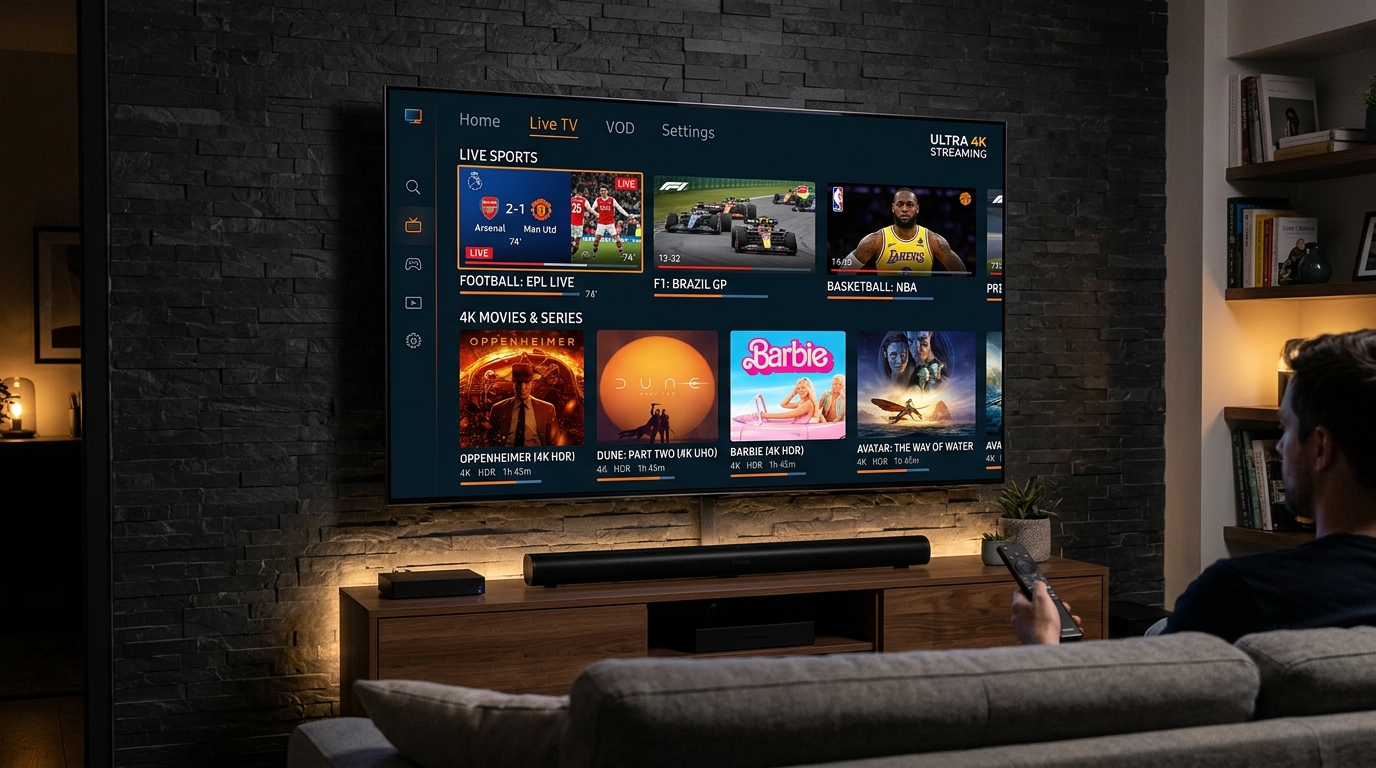
Samsung is the world's best-selling Smart TV brand — and in 2026, every Samsung TV from the 2019 model year onwards can run IPTV natively through its Tizen operating system. No extra device needed, no cables to run, no engineer visit. Just download an app, enter your SWCSTREAM credentials, and your 25,000+ channels appear on the screen that's already mounted on your wall.
This guide covers every working method for every Samsung Smart TV model, from the quickest setup to the most feature-complete options.
Which Samsung TV Models Support IPTV?
Samsung TVs from 2016 onwards running Tizen OS support IPTV apps. This covers the vast majority of Samsung Smart TVs in use today. To check your model:
Settings → Support → About This TV → Software Version
If your TV shows a Tizen version number, you're compatible. If you have a very old Samsung Smart TV running the legacy Samsung Smart Hub (pre-2015), the app selection is more limited — use the screen mirroring method below instead.
4K HDR support: Samsung QLED and Neo QLED models (Q6, Q7, Q8, Q9 series and higher) support 4K HDR10+ from IPTV streams. Ensure your SWCSTREAM plan includes 4K access — all plans do.
Method 1: Smart IPTV (SIPTV) — Most Popular for Samsung
Smart IPTV is the most widely used IPTV app on Samsung Tizen TVs — clean interface, fast performance, and reliable EPG integration.
Download:
- Press the Home button on your Samsung remote
- Navigate to Apps → search for "Smart IPTV"
- Install the app
Setup:
- Open Smart IPTV — it displays your TV's MAC address on screen
- On a phone or computer, go to siptv.app
- Enter your TV's MAC address and your SWCSTREAM M3U URL
- Click Upload — your channel list syncs to your TV
- Refresh the app on your Samsung TV → your channels appear
💡 Note: Smart IPTV is free for 7 days, then requires a one-time payment of ~€5.49 to unlock permanently. This is a device licence, not a subscription — pay once, use forever.
For a complete video walkthrough: How to Install IPTV on Samsung Smart TV in 2026 — Complete UK Setup Guide
Method 2: IPTV Smarters Pro — Best Full-Featured Option
IPTV Smarters Pro is available on the Samsung Tizen App Store and delivers the most complete IPTV experience — Xtream Codes login, full EPG, VOD library browsing, and catch-up TV.
Download:
- Press Home → Apps → search "IPTV Smarters Pro"
- Install and open
Setup:
- Select Add New User
- Choose Login with Xtream Codes API
- Enter your SWCSTREAM details:
- Server URL: your portal URL
- Username: your SWCSTREAM username
- Password: your SWCSTREAM password
- Tap Add User — channels, EPG, and VOD load automatically
IPTV Smarters Pro is the recommended method if you use the same app across multiple devices (Firestick, phone, tablet) — the interface is identical across all platforms.
For a step-by-step video: IPTV Smarters Pro on Samsung Smart TV — Full 2026 Guide
Method 3: SS IPTV — Free Alternative
SS IPTV is a free app available on the Samsung App Store with a simple M3U playlist interface. It's less feature-rich than Smart IPTV or IPTV Smarters, but it's free and works well for basic channel browsing.
Download: Apps → search "SS IPTV" → Install
Setup:
- Open SS IPTV → tap the remote icon → Playlist → Remote Playlist
- Enter your SWCSTREAM M3U URL
- Tap Add — your channel list loads
Method 4: Firestick via HDMI (Best Performance Option)
If you want the absolute best IPTV performance on your Samsung TV — fastest channel switching, best app selection, most stable streams — plug an Amazon Firestick 4K Max into your TV's HDMI port and use TiviMate or IPTV Smarters Pro through the Firestick.
This gives you:
- TiviMate — the best IPTV app available anywhere
- Full 4K HDR10+ output
- Ethernet adapter support for wired stability
- No dependence on Samsung's app availability
Switch your TV to the HDMI input where the Firestick is connected and use the Firestick remote. Full setup: complete Firestick IPTV guide.
Method 5: Screen Mirroring from Phone
If you can't find an app that works on your Samsung model, mirror your phone screen to your TV wirelessly using Samsung's built-in Smart View / Screen Mirror feature.
- Install IPTV Smarters Pro or GSE Smart IPTV on your Android phone
- Set up SWCSTREAM on the phone app
- Pull down the notification shade on your phone → tap Smart View or Screen Mirror
- Select your Samsung TV from the list
- Your phone screen appears on the TV — launch your IPTV app and go fullscreen
This works on any Samsung TV and any Android phone. iPhone users can use AirPlay if you have a Samsung TV from 2019 onwards (AirPlay 2 compatible models).
Samsung-Specific Tips for Best IPTV Experience
Enable Game Mode for lower latency. Settings → General → External Device Manager → Game Mode → On. This reduces input lag on the display panel — useful for live sports where a few frames of delay matters.
Set Picture Mode to "Standard" or "Movie." Samsung's default "Dynamic" mode applies heavy processing that can make compressed streams look artificial. Standard or Movie modes display streams more accurately.
Check for Tizen updates. Settings → Support → Software Update → Update Now. Newer Tizen versions have improved app compatibility and may resolve issues with older IPTV apps.
Use the Samsung SmartThings Hub for Ethernet. Some Samsung TV models support a USB to Ethernet adapter for wired connections — significantly more stable than Wi-Fi for live TV. Check your TV's USB port spec to confirm compatibility.
Troubleshooting IPTV on Samsung Smart TV
App not found in Samsung App Store
The app may not be available in your region's store. Try changing your TV's region: Settings → General → System Manager → Language/Region → change to US or UK, then rescan the App Store.
Smart IPTV shows "No Playlist"
Your M3U URL hasn't synced yet. Visit siptv.app again, re-enter your TV's MAC address and M3U URL, and click Upload. Wait 60 seconds then refresh on your TV.
IPTV Smarters shows "Authorization Failed"
Re-enter your Xtream Codes credentials manually — check for typos in the server URL especially. Verify your SWCSTREAM subscription is active at swc-stream.com/contact.
Buffering on Samsung TV but not on other devices
Your Samsung TV's Wi-Fi chip may be weaker than your phone or laptop. Move the router closer, switch to 5 GHz Wi-Fi, or use an Ethernet adapter. Our buffering fix guide covers every fix in detail.
EPG not loading on Samsung
Wait 24 hours after first setup. If still empty, re-enter the EPG URL in your app's settings. Our EPG guide explains how EPG data syncs on different apps.
Full troubleshooting for any IPTV issue: IPTV not working — 10 fixes guide.
Samsung vs LG vs Sony for IPTV: Which Smart TV Is Best?
| TV Brand | OS | IPTV Apps Available | Best App | Difficulty |
|---|---|---|---|---|
| Samsung | Tizen | Smart IPTV, IPTV Smarters, SS IPTV | Smart IPTV | ⭐ Easy |
| LG | webOS | SS IPTV, IPTV Smarters | SS IPTV | ⭐ Easy |
| Sony | Android TV | TiviMate, IPTV Smarters, GSE | TiviMate | ⭐ Very Easy |
| Philips | Android TV | TiviMate, IPTV Smarters | TiviMate | ⭐ Very Easy |
| Hisense | Android TV / VIDAA | IPTV Smarters, SS IPTV | IPTV Smarters | ⭐ Easy |
Sony and Philips TVs running Android TV have the best native IPTV app selection — TiviMate runs natively without any workarounds. Samsung and LG require the specific apps listed above. For the full Smart TV app comparison, our best IPTV apps for Smart TV guide covers every brand in detail.
Ready to Start?
Subscribe to SWCSTREAM at swc-stream.com/pricing and have IPTV running on your Samsung TV in under 10 minutes. If you want to test the service first, our free trial guide covers exactly how to verify quality on your Samsung TV before committing.
Have other devices in your home? Our complete multi-device guide covers every screen — Firestick, iPhone, Android Box, MAG Box, PC, and more. 🚀